Choose a clear frame, select and refine the visible subject, track the short shot, and export the matte.
GUI workflow
WINDOWS · AI VIDEO MASKING
Select and refine a subject in the Windows app. Track a shot, export a black-and-white H.264 matte, then use it for blur, grading or compositing in a compatible editor.
Release preparation is underway. Sales and trial downloads are not open.
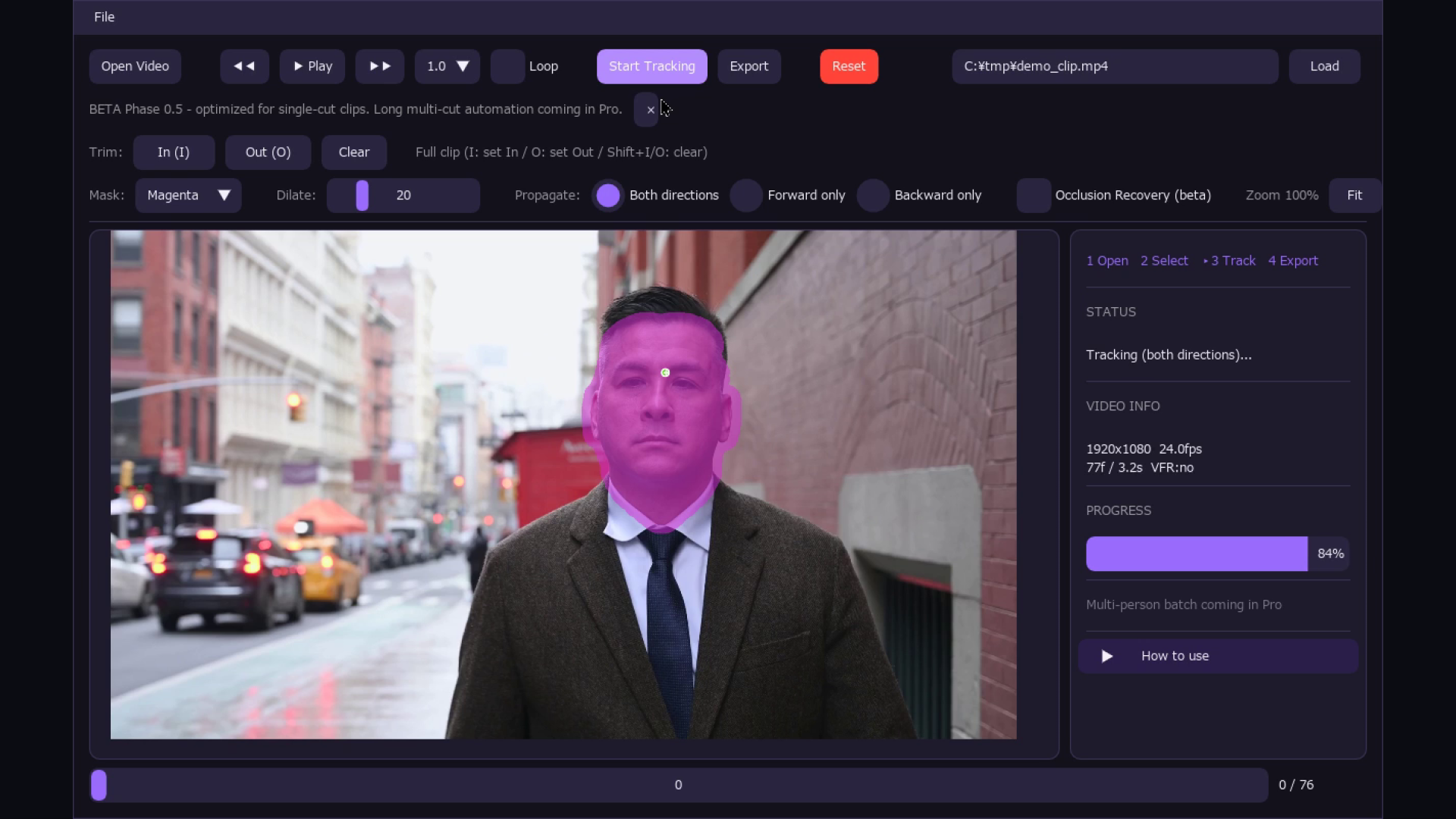
Actual app screen · 1920×1080, 24fps, 77-frame sample. Select the image to enlarge.
The more often you redraw a subject boundary, the less time remains for the finishing work.
Processed pixels alone are difficult to reuse in another editor or another finishing pass.
Instead of defining the target separately for blur, color, and compositing, keep one transferable matte as a source asset.
Open a video in the Windows app, select a subject that is clearly visible, refine the selection when needed, track the short shot, and review the result.
The output is a black-and-white H.264 matte with no finishing effect baked in, ready to hand off to an editor that supports the format.
Alongside the GUI, the CLI accepts an input video, seed JSON, and output path for scripted matte generation. AI inference runs on your PC.
Review the generated black-and-white matte and an example of using it in an editor. Check the output on each source clip.
These demos are edited for playback, not processing-time benchmarks. Review and refine tracking for each shot.
Export the black-and-white matte, then reuse it as the target area for blur, color, or compositing in a supported NLE.
Review tracking as a black-and-white matte before baking in the finishing treatment. For footage where the subject stops being visible, inspect the result and refine it when needed.
Rotomancer is a Windows standalone app, not an effect built into an NLE. Make a black-and-white matte in the GUI or CLI, then hand it off to editing.
| Step | Role / output |
|---|---|
| GUI | Select and refine the subject |
| Headless CLI | Run from seed JSON |
| Export | Black-and-white H.264 matte |
| Supported NLE | Use as a track matte |
Open a supported video file in the Windows standalone app.
Choose a clear frame, select the visible subject, refine it when needed, track the short shot, and review the result.
Export a reusable H.264 matte and import it as a track matte in a supported NLE. The CLI accepts an input, seed JSON, and output path.
GUI
Select, refine, and review a visible subject
CLI
Provide input video, seed JSON, and output path
H.264
Reusable black-and-white matte video
Choose a clear frame, select and refine the visible subject, track the short shot, and export the matte.
GUI workflow
Provide an input video, seed JSON, and output path to run matte generation from a script.
Headless CLI
Release preparation
We are preparing for release. Purchases and trial downloads are not open yet. Sales will open first through Lemon Squeezy, and the official purchase link will be posted on this page when it is available.
View contact options Watch the demoAsk about using black-and-white matte handoff inside an existing editing or automation pipeline.
Share representative footage, the NLE you use, and the required output format so fit can be evaluated against the current v1 scope.
NDA available; anonymity respected.
AI inference runs on your Windows PC, and source footage is not uploaded to our servers. Export a black-and-white H.264 matte from the GUI or CLI and hand it off to a supported editor. License activation requires internet access. Re-authentication requirements depend on the distribution channel and license.